iOS SDK
Information about the iOS SDK
The iOS SDK includes a core native library (closed-source) and a reference UI implementation provided in source code format. This setup allows you to fully customize the UI according to your application’s requirements. While this page provides an overview, you can read more detailed documents at iOS SDK Documentation.
The iOS SDK comes in two variants:
- Online: This variant is small in size, but it needs to connect with the server for SensePrint eID verification/decryption.It also includes a switch to go to offline mode, where the offline model is downloaded and stored in the application's folder.
- Offline: This variant is larger in size, but it can be used to verify/decrypt SensePrint eIDs with no network connectivity and completely on a mobile device.
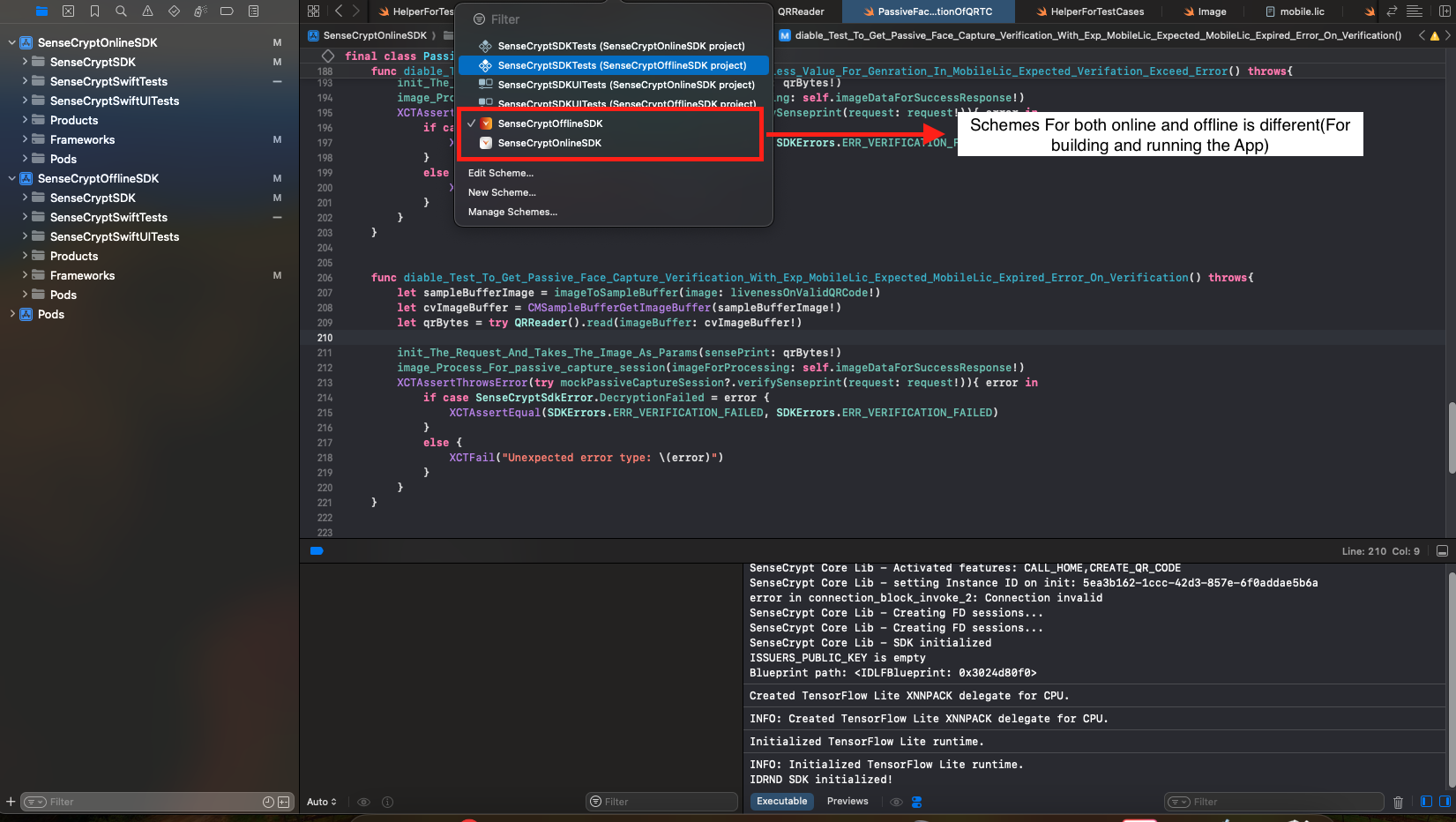
Both variants utilize the same reference UI implementation. This means the same Swift source code is used for both variants. In the provided XCode workspace there are two XCode projects that point to the same source files. Based on the selected schema you can either build & run the online or offline app variant.
Constants
The Constants files specify configuration parameters that can be set before compile time. The below screenshot shows the location of the Constants files for the Online and Offline variant:
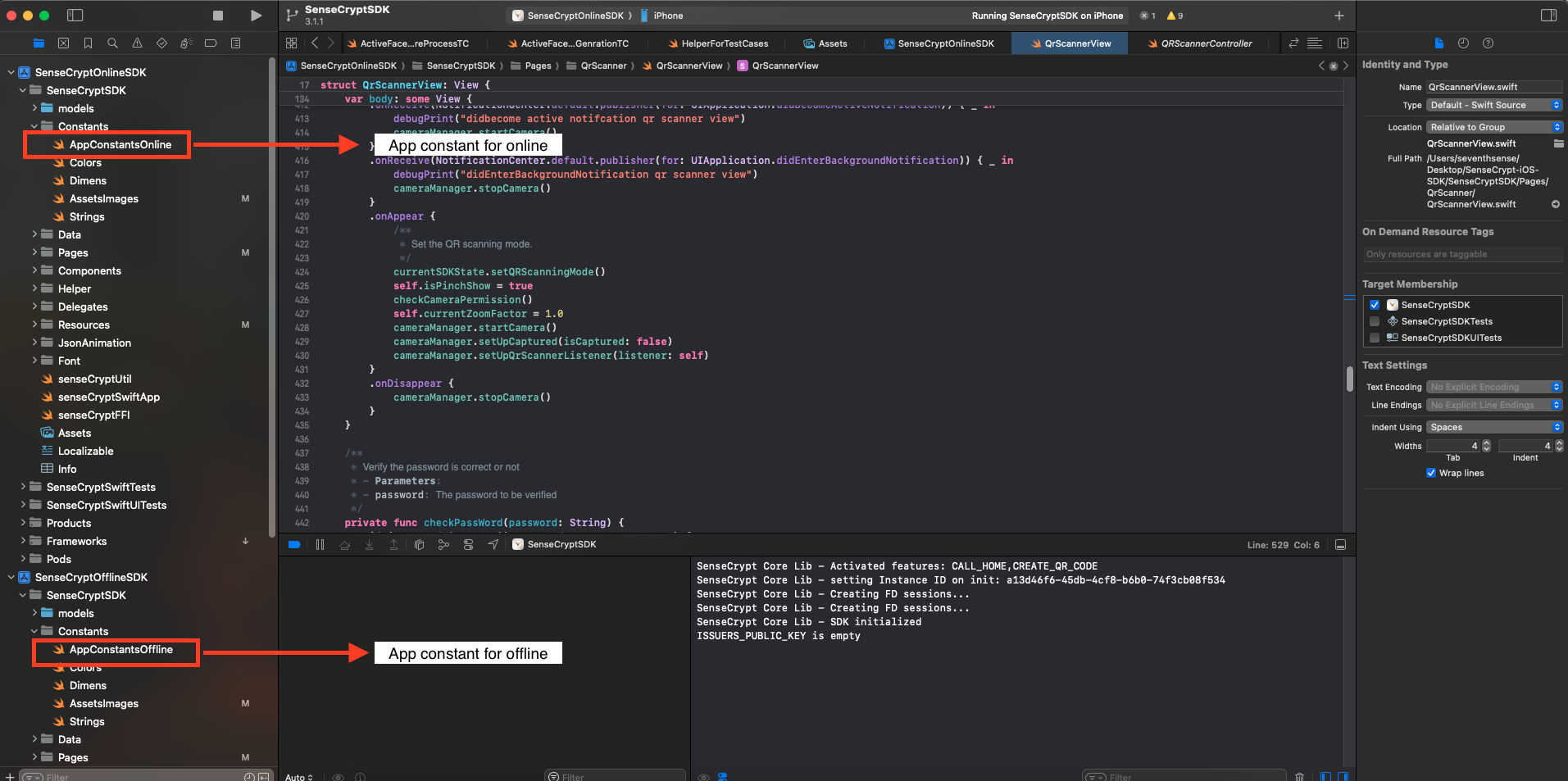
Constants shared among online & offline SDK
GENERATION_CAPTURE_MODE- the face capture method used while generating a SensePrint. Can be one ofFaceCaptureMode.ActiveCaptureFrontCamera,FaceCaptureMode.PassiveCaptureFrontCamera, orFaceCaptureMode.PassiveCaptureBackCamera.VERIFICATION_CAPTURE_MODE- the face capture method used while verifying a SensePrint. Can be one ofFaceCaptureMode.ActiveCaptureFrontCamera,FaceCaptureMode.PassiveCaptureFrontCamera, orFaceCaptureMode.PassiveCaptureBackCamera.SENSEPRINT_VERIFIER_AUTH_KEY- It is possible to generate SensePrint eID QR codes targeted at a specific verifier. See the section on Generating your first SensePrint eID QR. When theverifiers_auth_keyattribute is specified while generating the QR, that QR code can only be read by a specific verifier. Set the value ofSENSEPRINT_VERIFIER_AUTH_KEYto the value you used forverifiers_auth_keywhile generating the QR code.SDK_MODE- whether the current SDK mode is Offline or Online (as changed by the gradle task)DEBUG_FOR_SAVING_IMAGES- if turned on images are saved to Phone Storage for debug purposes.CONFIG_JSON_FILE_NAME- Json File to load the config from.
Constants for online SDK
API_SERVER_URL- this value should point to your server that you deployed using the Docker. If you exposed the server usingngrokuse the Ngrok URL value.- AUTH_HEADER - this value should be set to the
mobile_api_keyvalue you used in thesecrets.jsonfile while starting the Docker container for the server. If you are using a JWT Token for mobile authorization, this should be set toBearer your_jwt_token_from_server
Constants for offline SDK
ISSUERS_PUBLIC_KEY- this value is present only in the offline SDK. If you started the server in Certificate Authority mode by setting theissuers_private_key, then the server will issue signed SensePrints. In order to verify them, you must set the correspondingISSUERS_PUBLIC_KEYin the Constants. For more information checkout our overview.downloadURLForfr_nModel- URL to download the model.
Important Views
-
SplashScreen
Responsible for initializing the SDK and loading the necessary Machine Learning models into memory. This is the first view triggered when the application launches.
TheSplashScreenculminates by loading theMainView. -
MainView
A simple interface displaying entry points for SensePrint eID QR generation, verification and reading. Users can interact with buttons to proceed with either operation. -
GenerateQRView
Triggered from either theActiveFaceCaptureViewor thePassiveFaceCaptureView, this activity allows the user to input eID attributes (e.g., name, record ID) needed for QR code generation. -
QRScannerView
Scans the generated QR code containing the user’s face and other details. If the QR code is password-protected, the user will be prompted to enter the password before personal details can be decrypted. -
PassiveFaceCaptureView
This view captures a single, good image of a user using the camera. The captured image can then be used to generate/verify a SensePrint QR. -
ActiveFaceCaptureView
This view uses the camera to capture facial images but prompts the user to position their head in 3 random positions before their face is captured. This presents added security against injection attacks. -
PersonDetailView
This View contains all the details user will see after successfully scanning and decrypting a SensePrint QR code. -
SettingView
This view provides comprehensive information about the application's settings, including SDK version details and mobile license information. -
GenerateAndVerifySenesePrintSetting
-
SensePrint Generation. It includes the following settings:
The SensePrint Generation provides configuration options for the face capture process during the verification stage. The settings include:-
Face Capture Mode
Can be set to either Active Face Capture Mode or Passive Face Capture Mode.
Passive Face Capture Mode Options
-
Camera Orientation: Allows selection between front or back camera.
-
Liveness Detection: Provides an option to enable or disable liveness detection for sense print generation.
-
-
SensePrint Verification It includes the following settings:
The VerifyingSettingActivity provides configuration options for the face capture process during the verification stage. The settings include:
-
Face Capture Mode
Can be set to either Active Face Capture Mode or Passive Face Capture Mode.
Passive Face Capture Mode Options
-
Camera Orientation: Allows selection between front or back camera.
-
Liveness Detection: Not configurable in this stage, as the selection is determined during the sense print generation process.
-
-
-
SettingSDKModeSelectionView
The SettingSDKModeSelectionView provides options to switch between different SDK modes.
-
SDK Mode Selection
Can be switched between Online Mode and Offline Mode.
When Offline Mode is selected, required models will be downloaded from the server and stored in the application's folder.
-
Benefits of Offline Mode
Reduces the overall IPA size by not bundling all models within the application.
Ensures efficient storage management by downloading only necessary models.
-
-
Download Models View
- When the user switches to Offline mode for the first time, the app will display a view to download all the required model.
- Note: When you receive the app bundle from us, you will need to provide your own download URL for the models.
- To do this, host only the
fr_n.binmodels on your own server (you can use any hosting provider), and update the URL in the constant variabledownloadURLForfr_nModel. This step is necessary for the download feature to work properly.
Additional Notes
The SDK is designed for modularity, allowing full customization of the user interface and integration flows while maintaining core functionality within a closed-source native library.
This document serves as a guide to understand and integrate the iOS SDK into your application. Be sure to configure the constants accurately to align with your deployment setup and security requirements.