Encrypting Data/Keys using a Face Certificate
How to use Face Certificates to encrypt keys
As a Face Certificate contains a public key, it can be used to encrypt data. To decrypt the encrypted data, a user would, then, need the right private key.
This private key can only be generated from the user's face, SensePrint, and the purpose ID specified to generate the Face Certificate. Hence, encrypted data can only be decrypted via a live Face Scan of the intended recipient.
The /encrypt-with-face-certificate endpoint encrypts a key (32–512 bytes) using the public key
from a Face Certificate. The encrypted key can only be decrypted by the corresponding
/face-decrypt endpoint, using the same user's face, the same SensePrint, and the same purpose_id used when generating the Face Certificate.
This is useful for protecting data encryption keys (AES-256, RSA-2048, etc.) such that only the
face-verified owner can recover them.
What's new in v4.0.0: Face Certificates now support ML-KEM (post-quantum Key Encapsulation Mechanism) key types in addition to Secp256k1. Only ML-KEM and Secp256k1 face certificates can be used for encryption. Passing a certificate with an ML-DSA key type will return ERR_UNSUPPORTED_KEY_TYPE_FOR_ENCRYPTION — ML-DSA is a signing-only algorithm.
As a web end-point, we restrict the size of data to be encrypted. However, we suggest that instead of encrypting a large amount of data directly, the end-point can be used to encrypt a symmetric key or the private key from an asymmetric key pair.
Then the encrypted key can be stored side by side with encrypted data. To decrypt the data, the steps needed would be:
- Decrypt the encrypted key using a SensePrint, Face, and Purpose ID
- Decrypt the encrypted data using the decrypted key in step 1
As before, on the Swagger Docs page authorize using the API Key you setup earlier.
Expand the /encrypt-with-face-certificate section and then click the Try it out button as shown below:
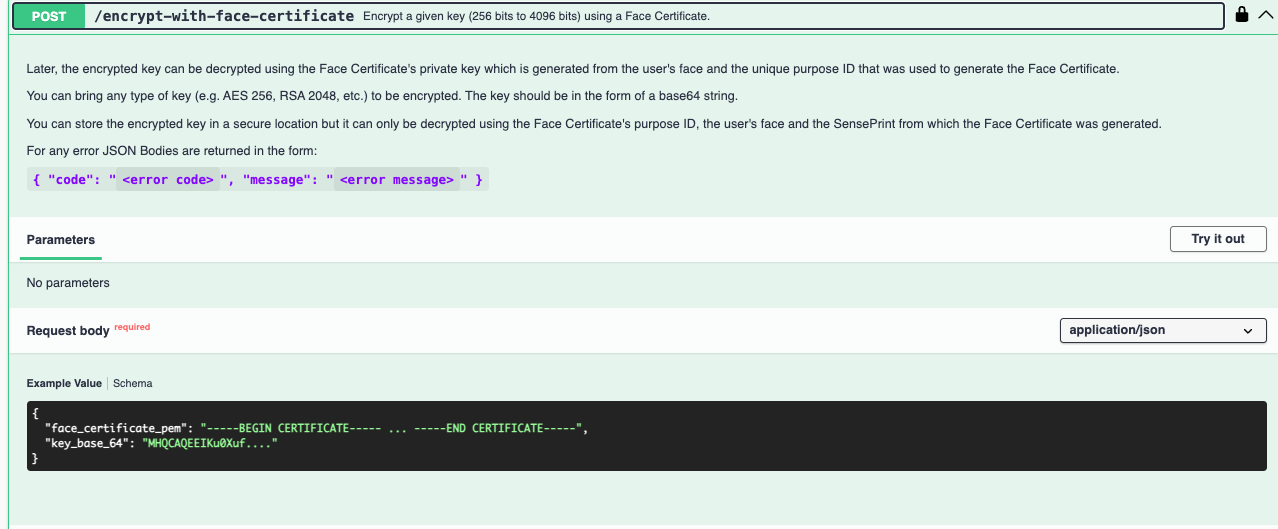
Upon clicking Try it out you should be able to submit the data as shown below:
{
  "face_certificate_pem": "-----BEGIN CERTIFICATE----- ... -----END CERTIFICATE-----",
  "key_base_64": "MHQCAQEEIKu0Xuf...."
}
Please note that when you generate a Face Certificate, it is returned with line breaks. When you submit it through the Swagger Docs page, those line breaks need to be replaced with escaped \n characters to be a proper JSON representation.
However, if you submit the Face Certificate programmatically, you would not need to manually replace the line breaks with \n.
Example response:
{
  "encrypted_key_base_64": "MHQCAQEEIKu0Xuf...."
}