Face Signing
How an eID holder can use their SensePrint to sign a piece of data
Just as a private key can be used in cryptographic systems to sign a piece of data (usually its SHA256 hash), in Face PKI, a face, SensePrint, and a purpose ID can be used to sign some data.
The steps in this process are the following:
- Generate a SHA256 hash of the data to be signed.
- Base64 encode the SHA256 hash.
- Send the Base64 encoded string to the server along with user's face, SensePrint and a purpose ID.
The algorithm used for the signature depends on the key_type specified in the request. For Secp256k1, the signature uses the Elliptic Curve Digital Signature Algorithm (ECDSA). For MlDsa44, MlDsa65, and MlDsa87, the signature uses ML-DSA (NIST FIPS 204, post-quantum). In all cases, the generated signature can be independently verified using a Face Certificate containing the public key or using the raw face public key for the same purpose_id and key_type.
What's new in v4.0.0: The endpoint now requires a key_type field specifying the signing algorithm. Supported signing key types are Secp256k1 and ML-DSA (post-quantum). ML-KEM is not a signing algorithm and cannot be used here.
As before, on the Swagger Docs page authorize using the API Key you setup earlier.
Expand the /face-sign section and then click the Try it out button as shown below:
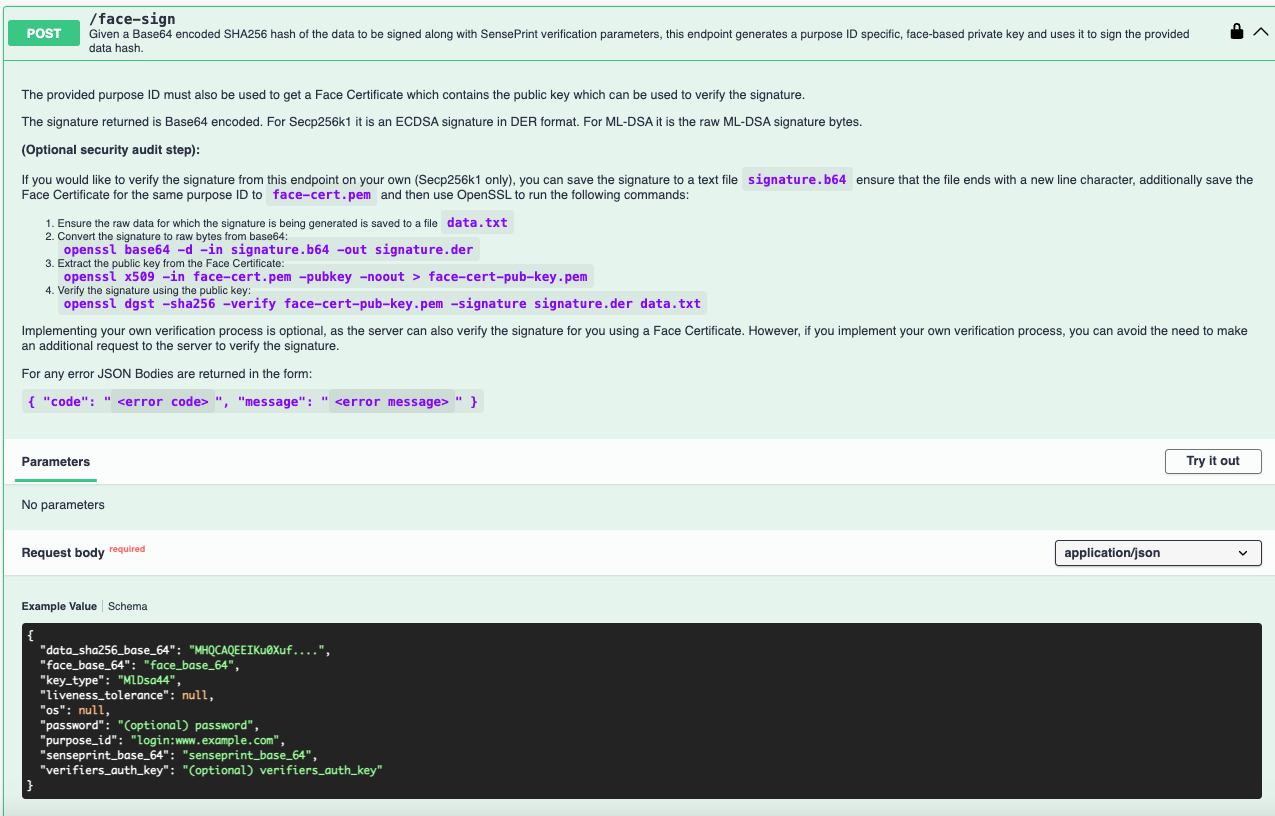
Upon clicking Try it out you should be able to submit the data as shown below:
{
  "data_sha256_base_64": "MHQCAQEEIKu0Xuf....",
  "face_base_64": "face_base_64",
  "key_type": "MlDsa44",
  "liveness_tolerance": null,
  "os": null,
  "password": "(optional) password",
  "purpose_id": "login:www.example.com",
  "senseprint_base_64": "senseprint_base_64",
  "verifiers_auth_key": "(optional) verifiers_auth_key"
}
The following summarizes the parameters for the request:
data_sha256_base_64- given a piece of data (bytes), it should then be SHA256 hashed to obtain 256 bits. The hash should then be Base64 encoded to send it to the APIface_base_64- the face of the SensePrint eID holderkey_type- Signing algorithm: Secp256k1, MlDsa44, MlDsa65, or MlDsa87liveness_tolerance(optional) - the tolerance of the liveness algorithm used to check for a live face before allowing the signing to proceed.os(optional) - indicates the operating system the image was captured on. Valid values areANDROID/IOS/DESKTOP.password(optional) - the same password (if one was specified) that was used during the SensePrint generation.purpose_id- a unique purpose ID. This should match the purpose ID that was used to generate the Face Certificate that will be used to verify the signature.senseprint_base_64- the foundational SensePrint eID in raw form.verifiers_auth_key(optional) - the sameverifiers_auth_key(if one was specified) that was used during the SensePrint generation.
key_type values for signing:
| key_type | Algorithm | Signature format |
|---|---|---|
| Secp256k1 | ECDSA (secp256k1) | DER-encoded ECDSA signature |
| MlDsa44 | ML-DSA-44 (NIST FIPS 204) | Raw ML-DSA signature bytes |
| MlDsa65 | ML-DSA-65 (NIST FIPS 204) | Raw ML-DSA signature bytes |
| MlDsa87 | ML-DSA-87 (NIST FIPS 204) | Raw ML-DSA signature bytes |
Note: ML-KEM is a key encapsulation algorithm, not a signing algorithm — it is not valid for key_type on this endpoint.
Example Response:
{
  "signature_base_64": "MHQCAQEEIKu0Xuf...."
}
Verify a face signature yourself with OpenSSL
1. Save SHA-256 hash of original data to data.txt (the data that was hashed)
2. Decode the signature from base64
openssl base64 -d -in signature.b64 -out signature.der
3. Extract public key from the Face Certificate
openssl x509 -in face-cert.pem -pubkey -noout > face-cert-pub-key.pem
4. Verify
openssl dgst -sha256 -verify face-cert-pub-key.pem -signature signature.der data.txt
Note: This OpenSSL workflow applies to Secp256k1 only. For ML-DSA signatures, OpenSSL 3.5+ is required.